SharePoint 2013

This is no doubt one of the many thousand posts on this subject – the beta release of SharePoint Server 2013.

Download it here.

and to accompany the install, have a read through this installation guide – http://www.microsoft.com/en-us/download/details.aspx?id=30384

Minimum software requirements for the preview are the 64 bit versions of Windows and SQL 2008 R2 with SP1.

Posted in SharePoint | Tagged | Leave a comment

Default Content Database

Nothing too complicated today but something that some people aren’t aware of and ask if it can be done – having more than one content database so they can, for example, keep sensitive data separate from their general day to day content.

It’s simple enough to create multiple content databases in Central Administration:

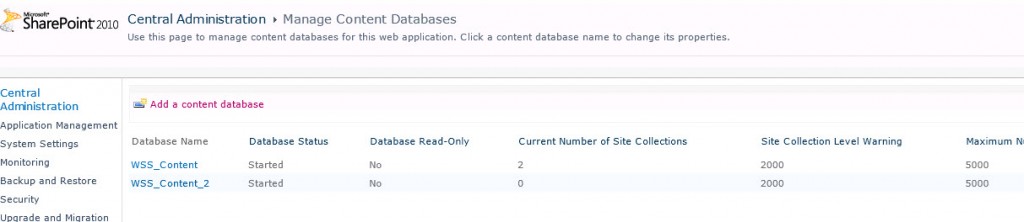
Within Application Management, click the Manage Content Databases link. This will take you to the /_admin/CNTDBADM.aspx page.

From that page, click the Add a content database link. Ensure the Web Application is set to the one where you want new site collection to be created in, fill in the new content database form and click OK. After a short while your new content database will be ready to use.
There are a couple of ways to setup the content database as the default database for new site collections. The first is:
Continue reading

Posted in Configuration, SharePoint | Tagged , , | Leave a comment

SPD WebPart Definition Code

Using SharePoint Designer, users can update WebPart properties directly via the code pane. Now, if this is a requirement for you, you’ll notice that when editing a custom version three WebPart (System.Web.UI.WebControls.WebParts.WebPart) that the properties are displayed as attributes of the WebPart element:

<WebPart:Test_WebPart runat="server" CustomProperty="custom value"></WebPart:Test_WebPart>

I’ve trimmed the above to make it more readable, the real element would be far longer and all on one line.

To make it easier for users to update properties via SPD and to move the properties to their own child elements, one option available is to make a few changes to your WebPart.

  • Change the WebPart to inherit from the version 2 class – Microsoft.SharePoint.WebPartPages.WebPart
  • Add the SupportsAttributeMarkup(false) attribute to the WebPart class
  • For the property you want displayed as a child element, ensure the property attribute used for storage is WebPartStorage(Storage.Shared) and not Personalizable(PersonalizationScope.Shared). The storage type used is not important.

For example:
Continue reading

Posted in Designer, SharePoint | Tagged , | Leave a comment

Paymo

Today, we have a non SharePoint related post to start June with.

I’ve been using various time tracking systems over the past while and have had varied success with them. Some I’ve loved certain features but hated others parts of their offering. I’ve been on the lookout for a system that “just does it” and lets me get on with the important stuff, like actually working 🙂

Recently, I found a free, yes free, online time tracking and billing system which ticks all of my boxes. OK, I said free, well it’s only free if you are happy to have a single user. As I’m a freelancer this suits me perfectly. Not that it’s that expensive if you do need to scale up. Two users is a mere £6.5/month with additional users costing about £3 each.

What is it? It’s from a company called Paymo and their website is www.paymo.biz
Continue reading

Posted in General | Tagged | 3 Comments

Export MetaData Terms

Central administration provides a way to import metadata term sets and terms by uploading a CSV file. However, it does not provide a mechanism for exporting terms to a CSV.

There are quite a lot of PowerShell and command line utilities on the web for accomplishing this, however, the ones that I found did not cater for terms that are more than one level deep. After all, you can create a term hierarchy that is up to seven levels deep.

So, to help fill this gap I’ve written a simple PowerShell script that does exactly this.

One caveat with importing CSV files through Central Administration is that it can only import one term set per CSV. So when exporting more than one set you have to create a separate file for each of them. You’d have thought the import script would have been able to handle multiple sets…
Continue reading

Posted in SharePoint, Taxonomy | Tagged , , | 13 Comments